Save insta can mean two very different things. Most people first think of the small bookmark icon under a post, which keeps it in a list inside Instagram. Others want an actual video or picture on their phone or computer. This guide explains the difference, shows how to save from Instagram to your device, and covers the best ways to keep your own posts.
SaveInsta is a free Instagram downloader that runs in your browser. It works with public posts, asks for no login and needs no app. If you only want to find a post again next week, the bookmark may be all you need. If you want a copy that stays with you, you need a file.
What does save insta mean?
The phrase is short, so it covers several needs. Someone typing it may want to bookmark a recipe, keep a Reel for a flight, back up a business page or find a tool called SaveInsta. The first question to ask is simple: do you need a reminder inside Instagram, or a file you control?
A bookmark is a pointer to someone else’s post. It costs no storage, and only you can see your Saved list. But it depends on the post staying online and on you having an internet connection. A file is a separate copy. It takes up storage, opens without Instagram and can be moved to another device. It also comes with more responsibility, because you now hold a copy of someone’s work.
In-app Save vs a real file
This table shows what each option really does.
| Question | Save bookmark in Instagram | Downloaded file |
|---|---|---|
| Where is it kept? | Your Saved list in Instagram | Your phone or computer |
| Works offline? | No | Yes |
| Uses storage? | Almost none | Yes, videos can be large |
| Owner deletes the post? | It disappears | Your copy stays |
| Can you edit it? | No | Yes, if you have the right |
| Needs an Instagram account? | Yes | Not with SaveInsta |
To use the bookmark, tap the ribbon icon under a post. Find it later from your profile menu under Saved, where you can also sort posts into collections. It is a good choice for shopping ideas, travel plans and anything you only need for a short time.
Choose a file when you must watch without a connection, need the clip in a video editor or want to protect your own work. Many people use both: bookmark first, then download the few things that truly matter and that they have the right to keep.
How to save from Instagram to your phone or PC
The steps are the same for a Reel, a feed video, a photo or a carousel.
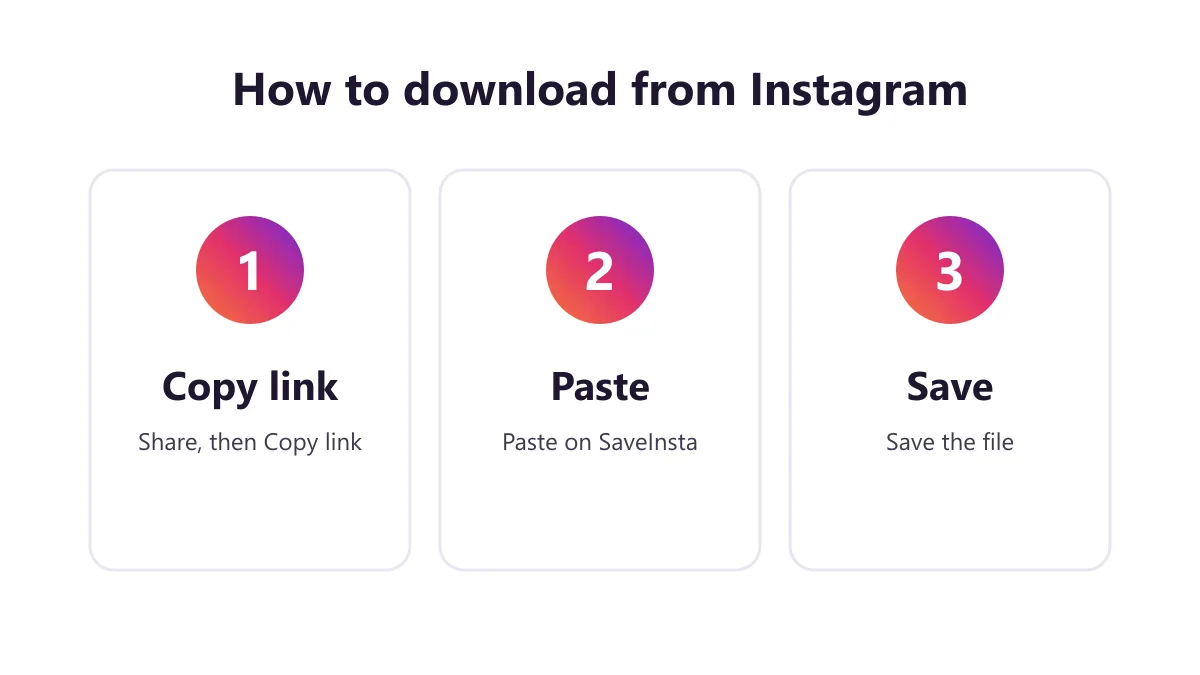
1. Copy the link of the post
Open the public post and tap Share or the three dots, then choose Copy link. On a computer, you can copy the address from the browser bar. Make sure it is the link of the post, not the profile.
2. Paste it into the box
Open the SaveInsta home page and paste the link into the box. Press the download button and wait a few seconds while the tool reads the public post.
3. Save the file to your device
Check the preview and tap the download button. Videos usually arrive as MP4 files and photos as image files. Open the file once to confirm that the picture and sound are right.
HD here means the best quality Instagram stores for the post, usually up to 1080p for video. We do not promise 4K, and a file can never look better than the original upload. Some videos may have no sound when the post has no audio or Instagram gives no audio track. Private accounts never work. Photos and carousels work too: each item saves separately, and all photos can be saved together as a ZIP. Stories are not supported yet.
Where the file goes on each device
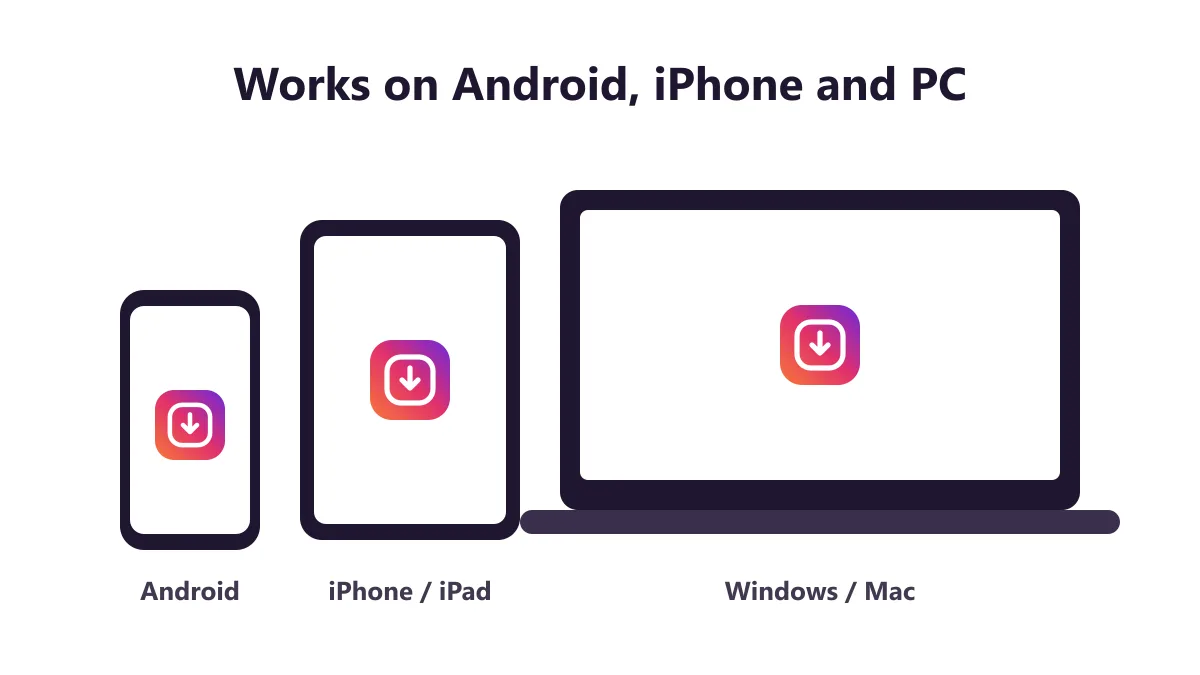
Android. The file normally lands in the Downloads folder. Open it from the Files app, and look in your gallery too. If it does not appear there, moving it into the Pictures or Movies folder often helps.
iPhone. In Safari, downloaded files go to the Files app first, not to Photos. Open Files, find the item, tap Share and choose Save Video or Save Image. It then appears in your Photos app with your other media.
PC. Check your browser’s Downloads folder. If a video opens in a new tab instead, right-click it and choose Save video as. A computer is also a good place for a long-term copy, because phones fill up quickly.
Keeping your own posts safe
Your own content deserves more care than a clip you found by chance. Accounts can be lost, and posts can be removed by mistake. Here are three sensible habits:
- Keep your originals. The photo or video on your camera roll is usually better than the version on Instagram, so back it up to a computer or cloud drive.
- Request a full copy of your data. In Instagram, go to Accounts Center and look for Download your information. It can take some time, but it covers far more than a single post.
- Use the Archive for stories. Instagram can keep your expired stories in your private Archive, as long as that setting is turned on.
SaveInsta is useful for the quick case, such as getting one of your public Reels back when the original is gone. It only works if the post is public. If your account is private, use the tools inside Instagram instead.
Give your files clear names, such as the date and topic, and put them in one folder. A year from now, a folder called Shop Reels will be much easier to search than hundreds of random numbers.
Respect, safety and the limits of saving
Being able to save something does not always mean you may use it. Keeping a tutorial for personal viewing is very different from posting someone’s video as your own. Credit creators, ask before you repost, and check the rules where you live, because laws differ by country.
Protect your account too. SaveInsta never asks for your Instagram password, so do not type it on any site that promises downloads. Be careful with pages that ask you to install unknown software or allow notifications before continuing. Treat any promise of viewing private accounts as a warning sign.
If a link fails, check that the post is public and still online, then refresh the page and try again. Instagram can be slow or limit requests for a while. If you still need help, email the link to [email protected].
Choose the right SaveInsta page
Once you know you want a real file, pick the page that matches your content:
- The Instagram Reels downloader is for short vertical videos.
- The Instagram video downloader is for regular feed videos.
- The Instagram photo downloader is for single photos and carousels.
So the next time you think save insta, ask one question first: do you need a bookmark or a file? Use the ribbon for later reading, and make a copy only of what you have the right to keep.